

Amazon recently reshaped the digital assistant conversation at CES 2026 with the launch of a dedicated web interface for Alexa+. At first glance, it might seem like just another way to talk to a virtual assistant through a browser, but it is clearly more than that. This platform steps past basic voice commands and into something more autonomous, giving users the ability to build and manage Agentic Workflows, essentially multi-step tasks that Alexa+ can carry out on its own across different services.
Powered by Amazon Nova, the company’s generative AI model family, Alexa+ can now reason through requests instead of reacting to them one prompt at a time. It can navigate the web, weigh options, and even handle real-world actions like booking travel or coordinating family schedules without you needing to supervise every step. That shift alone makes the web interface worth a closer look.
Understanding the Key Entities
Before diving into the interface itself, it helps to ground things in a few core concepts that drive how Alexa+ behaves. Without this context, some of the features might feel almost too abstract at first.
Alexa+ is the premium, AI-rebuilt version of Amazon’s long-running digital assistant. Unlike Classic Alexa, it relies on large language models to interpret nuance and maintain context across longer, more fluid conversations. It feels less like issuing commands and more like outlining intentions, which takes a bit of adjustment but pays off quickly.
Agentic Workflows are at the heart of this update. Instead of answering a single question, Alexa+ acts as an agent that plans and executes a sequence of steps to reach a goal. That might mean finding recipes, checking what is already in your pantry, and ordering what is missing, all from one loosely worded request.
Persistent Context is what ties everything together. Alexa+ can remember what you started on one device and continue it elsewhere. A conversation that begins on an Echo Show can resume on your laptop through Alexa.com without losing its place, which sounds simple, but in practice feels surprisingly seamless.
Step 1: Access the Alexa+ Web Dashboard
Before you can build any workflows, you need access to the Alexa+ web environment itself.
Start by opening your preferred browser and navigating to Alexa.com. Log in using your Amazon account credentials, and once you are in, check your subscription status. Alexa+ is currently in Early Access. It is included for Amazon Prime members, while non-Prime users can subscribe separately for $19.95 per month.
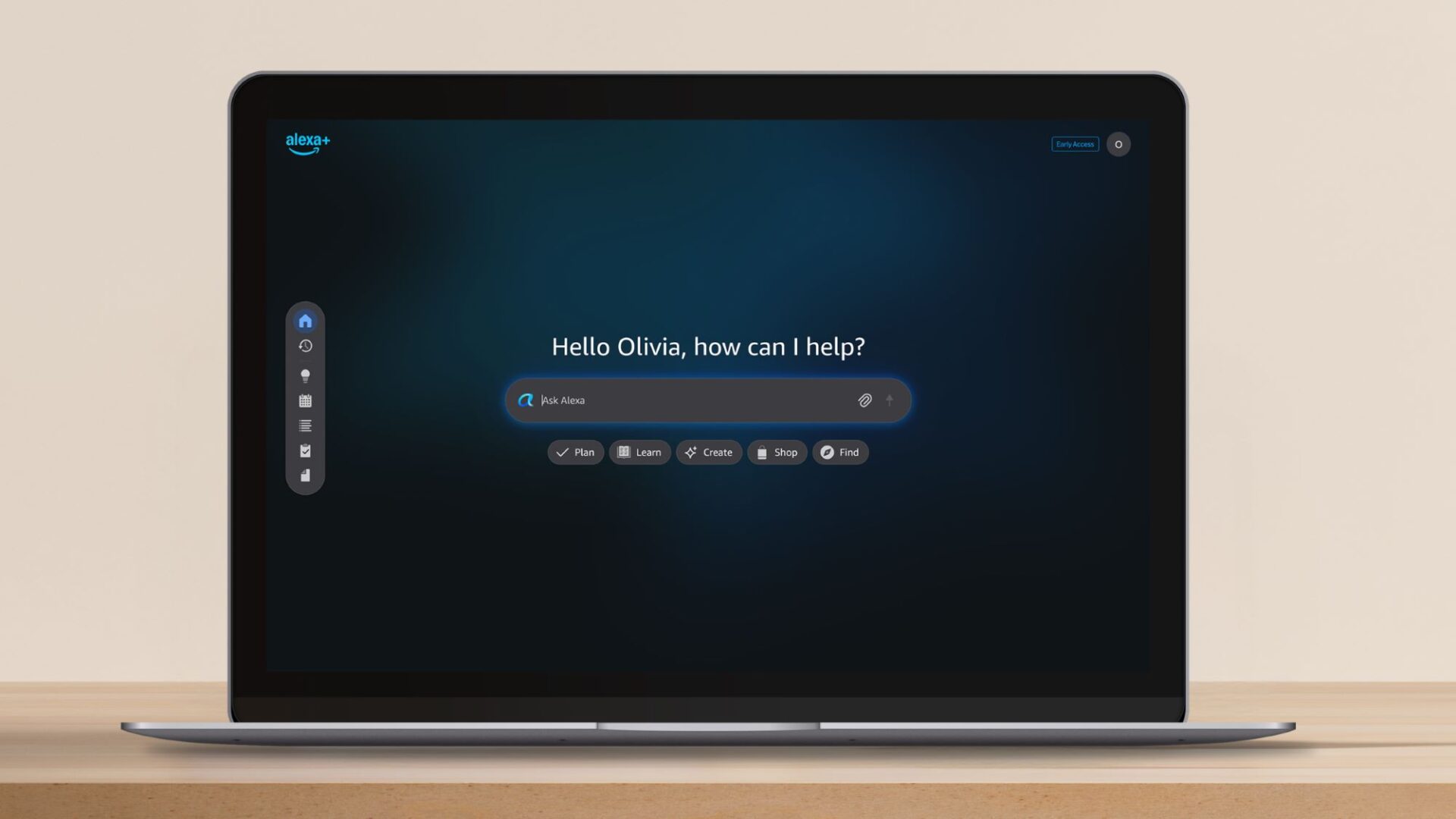
After logging in, you are greeted by a chat-forward interface that feels familiar if you have used tools like ChatGPT. The difference is the navigation sidebar on the left, which provides quick access to smart home controls, calendars, shopping lists, and other connected services. It feels intentionally practical, maybe even a bit utilitarian, but that works in its favor.
Step 2: Configure Permissions for Agentic Tasks
For Alexa+ to act independently, it needs permission to access parts of your digital life. This is where things can feel slightly intrusive, although the controls are fairly transparent.
Click the Settings icon in the bottom-left corner of the interface and navigate to Integrations and Data. From here, you can link essential accounts such as Google or Outlook calendars, email services, and third-party platforms like Expedia, Yelp, or Uber.
There is also an option to upload context documents. PDFs or images, such as a school timetable or a medical record, can be added so Alexa+ can extract relevant details for future workflows. It is optional, but once you try it, you may find it quietly useful in ways you did not expect.
Step 3: Triggering Your First Agentic Workflow
An agentic workflow usually starts with a broad objective rather than a tightly scoped command. This takes a bit of unlearning if you are used to traditional voice assistants.
Instead of saying, “Add milk to my list,” you might say, “Plan a week of high-protein meals for my family and put the ingredients in my cart.” That single request gives Alexa+ room to reason.
Type your goal into the chat bar and watch the status indicator as Alexa+ breaks the task into sub-steps, such as searching for recipes, checking your past grocery orders, and filling your cart. It can feel slow the first time, but there is a certain reassurance in seeing the steps laid out.
If Alexa suggests something you do not like, refining the workflow is simple. Typing “Replace the salmon with chicken” updates the entire plan, including the shopping cart, almost instantly. It feels less like correcting an assistant and more like steering a collaborator.
Step 4: Managing Smart Home Scenes via Web
The web interface really shines when it comes to smart home management. Voice commands are convenient, but they do not always give you the full picture.
Click the Smart Home icon in the sidebar to see a dashboard view of your connected devices. From here, you can check live camera feeds from Ring or Blink devices, adjust thermostats, or review recent activity without jumping between apps.
Agentic automation adds another layer. You can ask Alexa+ to monitor the front door and unlock it only when it recognizes a delivery driver. The agent uses its reasoning capabilities to filter alerts and actions, which feels more thoughtful than simple motion triggers, even if it still requires trust.
Step 5: Utilizing Cross-Device Continuity
One of the most compelling features of the 2026 update is the way workflows move between devices, or surfaces, as Amazon calls them.
You might start on the web, using your laptop to plan a detailed vacation itinerary on Alexa.com. Later, while you are out, you can open the Alexa mobile app, now redesigned around agent-driven interactions, and find the same itinerary waiting exactly where you left it.
When you get home, you can say, “Alexa, show me the flight options we found earlier,” and the agent pulls up the researched data on your Echo display. It is subtle, but this kind of continuity changes how you think about where and when to start complex tasks.
Troubleshooting Common Issues
If Alexa+ is not responding to your voice on the web, that is expected. As of early 2026, the web interface primarily supports text input. Voice interactions still live on mobile apps and Echo devices.
If a workflow fails during a payment step, it is usually due to security limits. Purchases over a certain amount require manual confirmation, so check your notifications for an approval request.
If context seems to be missing between devices, double-check that you are logged into the same Amazon account everywhere. It sounds obvious, but it is often the simplest explanation.
Overall, the Alexa+ web interface feels like a meaningful step toward assistants that actually manage tasks rather than just responding to them. It is not perfect, and it sometimes asks for a bit of patience, but the direction is clear, and it is surprisingly easy to imagine this becoming part of a daily routine.
Frequently Asked Questions (FAQ)
Q. Is Alexa+ free for Prime members?
A. Yes, as of the 2026 rollout, Amazon Prime members receive Alexa+ access as part of their membership. Non-members must pay a monthly subscription fee.
Q. Can Alexa+ perform tasks in other apps?
A. Yes. Through the Alexa AI Action SDK, Alexa+ can interact with integrated “specialist agents” from companies like OpenTable, Expedia, and Ticketmaster to complete bookings on your behalf.
Q. How is Alexa+ different from the standard Alexa?
A. Standard Alexa follows “if-then” logic. Alexa+ uses agentic reasoning to handle “multi-turn” conversations, meaning it remembers previous questions and can figure out how to solve a problem without you telling it every single step.
Q. Is my data safe when I upload documents to Alexa.com?
A. Amazon states that documents uploaded to the web interface are encrypted and used solely to provide context for your personal assistant. You can view and delete this data at any time in the Privacy Settings menu.